Word2CAD™
Product Details
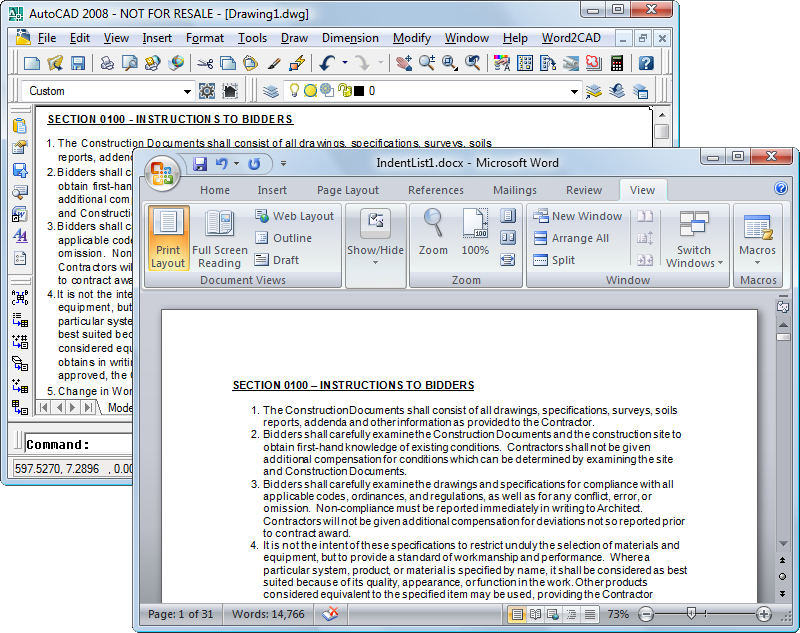
Word2CAD overcomes the limits and problems associated with OLE placement of Microsoft Word documents into AutoCAD, BricsCAD and IntelliCAD. It draws the document using native geometry so the result is a bound collection of mtext (and table) objects that is linked to the original document, can be plotted without problems and is highly portable to other users.
We added support for Word Tables (even those including merged rows and columns) as well as inline images (bitmaps). Also numerous refinements to existing tools and faster processing.
|
|
|
- Automatically updates changed Word documents on drawing open.
- Uses bookmarks, allowing the area to grow/shrink as you add/remove paragraphs.
- Exclusive column wrapping. Users can specify the maximum column height and gap distance. The results will flow to the designated height, then move up and to the right to continue until done.
- Style settings. This allows multiple styles to be defined and chosen during placement. Results automatically take on changed style parameters when updated. Style files can be shared and administered.
- Quickly scan a project folder (or an entire drive) for drawings that need updating, then process them in batch, unattended.
- Runs as a true 64-bit application in supported CAD engines.
Smart Linking & Updating
When Word2CAD creates the document the drawing, it stores extended data on the insert. Since the date and time of creation (along with the document file name) is stored, it can easily determine when the representation needs updating. So when you reopen your drawing, Word2CAD quickly evaluates the document instances in the drawing and automatically updates only those that have changed!
OLE has Its Limitations, Word2CAD Doesn't
- OLE Size is limited to 'a single page'.
- Plotting problems in which OLE appears 'grainy', 'fuzzy', etc.
- If the drawing is rotated and plotted, the OLE does not rotate.
- OLE Objects can 'bleed through' multiple layouts, showing up in places where they don't belong.
- Recipients of your drawings on other CAD systems may have problems with the OLE representation.
Interface Choices
Control the application with your choice of command line entry, pulldown menu, traditional toolbars or ribbon interface.

Features
 |
Function | Description |
|---|---|---|
| Column Wrapping: | Long (multi-page) documents are not a problem. With Word2CAD's column wrapping, you can turn on this feature and specify the column height and gap distance. The text will flow to the designated height, then move up and to the right to continue. A dozen page document can be plotted on an E size sheet with ease. | |
| Inline Images: | Bitmap images included in the document are placed in the resulting block. | |
| Style Override: | Let the clerical personnel use true type fonts in the document, then use your favorite SHX font as an override in the drawing. Has no effect on the source document. | |
| Set Page Width: | The instance in the drawing doesn't have to be 8½" wide. You can set the page width to a narrow or wide value. Narrow columns can often allow more information to fit on the sheet. | |
| Table Support: | Word tables are placed inline as CAD table objects, including merged rows/columns. |
Details
|
Function | Description |
|---|---|---|
| Interface Options: | Initiate the tools with your choice of the toolbar, ribbon or with the pull down menu. | |

|
Create New Instances: | Simply highlight the desired area in your document, then launch our document creation tool. It talks to Word through the ActiveX channel (no clipboard or intermediate files) and then creates the best possible representation of your document.
The resulting geometry is bound into a block insert for easy movement, erasure, etc. |
|
|
Change Properties: | After a document instance has been placed, you can easily change all of the properties. |
|
|
Update Selection: | At any time in an editing session, you can issue this command and choose the instances to update (or simply type ALL). It checks the file dates on the documents, and tells you if an instance doesn't need updating. |
|
|
Reference Manager: |
This dialog displays a list of all document references in the drawing and helps you manage them using this information and tools.
|
| Launch Word: | Pick a document reference in the drawing and this tool instantly opens Word with the document open. The referenced range is highlighted. | |
|
|
Set Defaults: | This dialog controls all the defaults for newly created document references. Includes setting for auto update, overrides, factors and other options. |
| Annotation Export: | Simply window off an array of text or mtext objects in the drawing, and have them immediately placed into a table in the open document. | |
| Attribute Export: | Exports block attributes to a table in the currently open document. It sorts the selected blocks based on the Y coordinate for a top-down order appropriate for blocks used to create schedules. | |
|
|
Drawing Export: | Simplifies the export of the current drawing to the currently open Word document. |
| Layer Report: | Generates a layer report of the current drawing in an open document, including graphical icons. | |
| Point Export: | Exports coordinates from nodal and linear geometry to a table in the document. | |
| Table Export: | Exports table information from a table object to the currently open document. |
Summary
- Override truetype fonts with a style name.
- Manage multiple document references easily.
- Uses named bookmarks, allows users to add text to the linked range.
- Automatically updates changed documents on drawing open.
Requires
- Word 365
- Word 2016
- Word 2013
- Word 2010
- Word 2000-2007
CAD Engines: Please refer to the Support page for the latest supported CAD engine information!
Documentation: Installs with the software and is available on-line.
Product Support: Email Support Only: Contact us! See also these Word2CAD FAQs.
License Type: Perpetual (Never Expires)
Pricing: The more you buy, the more you save!
| Item | Demo/Evaluation | Price | Save | Purchase |
|---|---|---|---|---|
| Single: | Download | $100.00 | Buy Now | |
| 5-Pack: | Download | $475.00 | 5% | Buy Now |
| 10-Pack: | Download | $900.00 | 10% | Buy Now |
| 15-Pack: | Download | $1275.00 | 15% | Buy Now |
| 20-Pack: | Download | $1600.00 | 20% | Buy Now |
Upgrade Pricing: Contact us for discounted upgrade pricing.